
TABLE OF CONTENTS
- Overdue Order Email Notifications
- What the notification means
- How to resolve an overdue order
- Next steps after receiving a notification
Overdue Order Email Notifications
We send overdue order notifications because most marketplaces measure seller performance based on how quickly orders are shipped. If an order hasn’t been marked as shipped within 5 days of creation, you’ll receive an email alert so you can take action.
What the notification means
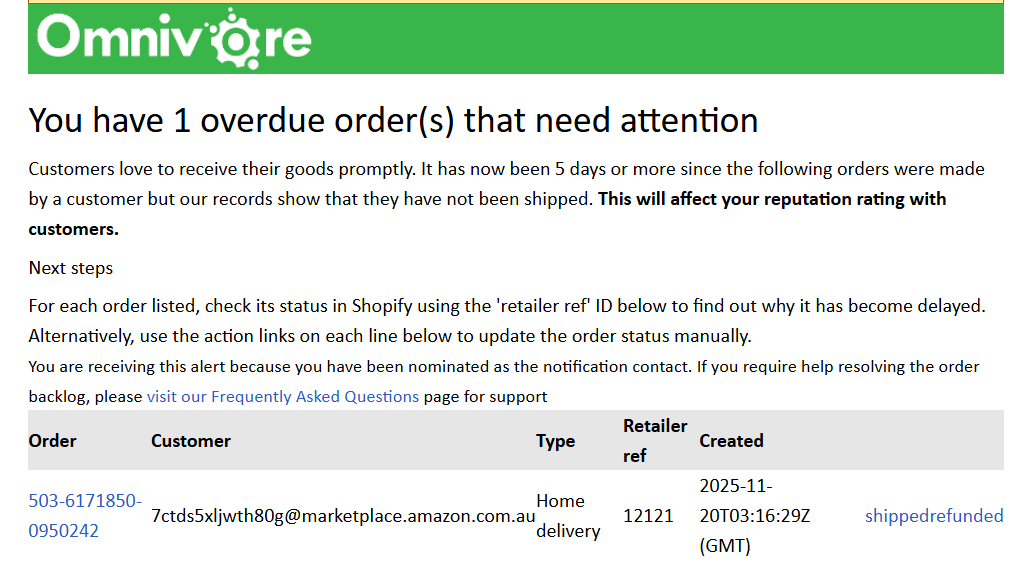
The email tells you which orders are overdue — meaning they haven’t been marked as shipped in Omnivore / eBay LINK or your connected system. These notifications help you avoid negative impacts on your seller performance and customer experience.
How to resolve an overdue order
To clear an overdue order from the list, you must either:
Mark the order as shipped in the Omnivore Order screen; or
Mark the order as refunded in Omnivore.
⚠️ Marking an order as Refunded in Omnivore does not issue a refund on the marketplace itself — it only tells Omnivore the order is complete, so it’s removed from the overdue list.
If you received an overdue notification email, it will include quick links allowing you to update each affected order directly from the message.
Next steps after receiving a notification
Use the retailer reference ID shown in the email to locate the order in your eCommerce platform.
Check why the order hasn’t been dispatched.
If the order has been despatched, ensure the tracking details are added to your eCommerce platform. These will then sync to Omnivore / eBay LINK and update to the marketplace.
Alternatively, update the order status (shipped or refunded) using the links in the email or in the Omnivore Order screen.