
You can set one item location for all products (default), or configure different item locations for different products using product groups.
Option 1: One Item Location for All Products
Go to Settings → eBay Australia → Locations.
If you use a single location for all products, you will see one default location listed.
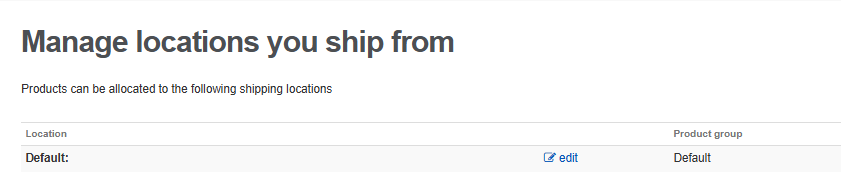
Click Edit and enter your shipping location details.
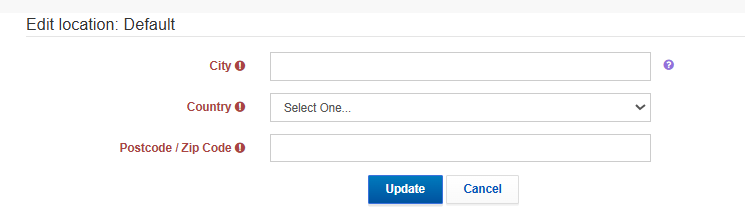
Click Update to save your changes.
Go to the Dashboard and click Upload to eBay so the new location is applied to all listings.
Option 2: Different Item Locations for Different Products
To use multiple item locations, you will first need to create product groups.
Step 1: Create a Product Group
Go to Products → Product Groups and click Add a product group. See this FAQ for more details.
Create the group using criteria such as brand, weight, price, category, or specify individual SKUs.
Click Create Product Group.
Step 2: Add a New Item Location
Go to Settings → eBay Australia → Locations.
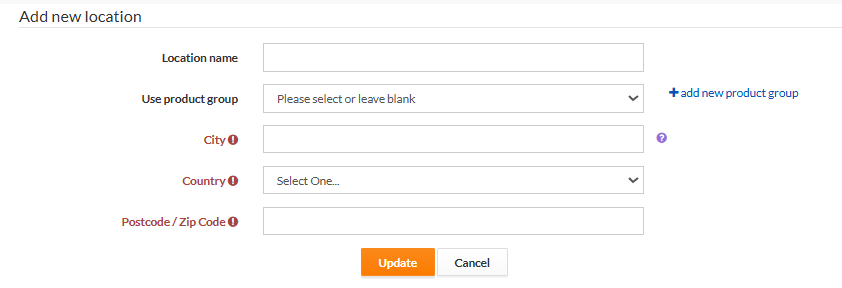
Click Add new Location.
Enter the item location details and select the product group you created.
Click Update to save.
Go to Products → All Products and open a product that belongs to your new product group.
Scroll to the eBay Australia Product View section and click Upload to eBay Australia.
Once uploaded, check the listing on eBay to confirm the correct item location is showing.
Step 3: Test the Location (Recommended)
Step 4: Apply to All Products
If the test is correct, go to the Dashboard and click Upload to eBay to update all products in that product group.