Can I list bundled products through eBay LINK?
eBay LINK does not support bundle-type products that are created in your eCommerce platform (e.g. Shopify, WooCommerce). This is because we can’t read or interpret how those bundles are constructed — including which products are included, in what quantities, or how their inventory is managed.
What should I do with existing bundles on my site?
-
Any bundled products created in your eCommerce store must be blocked in eBay LINK to prevent listing errors.
-
If you want to list bundles on a marketplace, you'll need to recreate them manually inside eBay LINK using our bundle tools.
What types of bundles can I create in eBay LINK?
You can create three types of bundles:
Bundle Type 1:
One SKU with a multiple quantity.
Example: 6 bottles of water (all the same product).
Bundle Type 2:
Multiple SKUs with one quantity each.
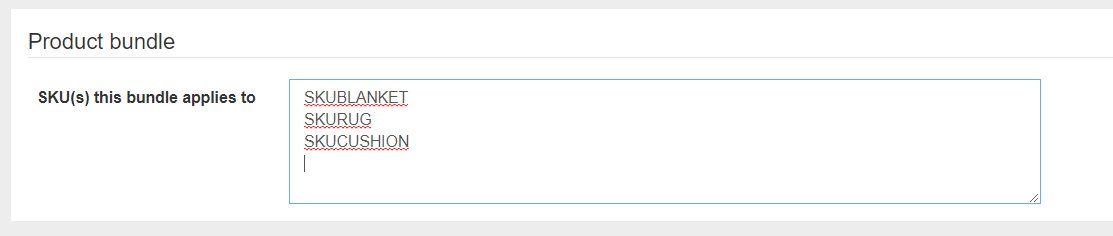
Example: 1 blanket, 1 rug, and 1 cushion.
Bundle Type 3:
Multiple SKUs with varying quantities.
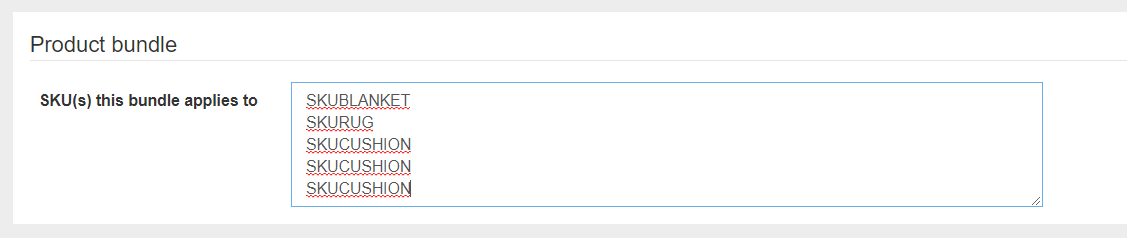
Example: 1 blanket, 1 rug, and 3 cushions.
Important Notes:
-
All bundles must be created using parent SKUs only — variant SKUs are not supported for bundling in eBay LINK.
-
Inventory levels for bundled products are calculated based on the availability of each component SKU.
Marketplaces
Not all marketplaces support bundled or bulk-buy products.
Currently, only the marketplaces listed below accept bundle listings from eBay LINK. If a marketplace is not listed, it means bundles are not supported on that platform via eBay LINK.
-
eBay Australia
-
Trade Me
-
Woolworths MarketPlus
-
Uber Eats
Create a Bundle
-
In eBay LINK, use the left-hand menu to navigate to Bundles - Create New Bundle.
-
Complete the fields in the new bundle form.
|
Field Name |
Description |
|
Bundle Name |
The name of the bundle that will be shown on Trade Me i.e the Product Title - this defaults to the name of the first product in the bundle if this is left blank. |
|
Product name template |
Leave this blank unless you want to optimise the product title with key words such as Brand. |
|
Bundle Short Description |
The Short description on Trade Me. |
|
Bundle Detailed Description |
The Long description on Trade Me. N.B. Trade Me does not support the use of HTML here. |
|
Bundle Image URL |
Please provide the image in a URL format. If you do not add a URL we will use the image from the FIRST product added in the bundle. |
|
Bundle weight |
This is important if you have weight based shipping set up. Add a weight if you want weight based shipping to apply. Make sure the weight is in the same units as your other product weights. |
|
Start Date |
Leave blank if you want this bundle to start immediately, otherwise the bundle will start when the next scheduled feed to Trade Me occurs. |
|
End Date |
Leave blank if you want this bundle to continue indefinitely |
|
Sell Amount |
The price of the bundle |
|
Bulk Buy |
Check this if you want to offer bundle type 1 (as above) - one sku with multiple quantities. |
Bundle Type 1: Single Product, Multiple Quantity (Bulk buy)
-
Complete the fields in the table above and make sure you check 'Bulk Buy'
-
Enter the quantity of the product in the bundle and the SKU.
-
Click Create Bundle

Bundle Type 2: Multiple products, Single Quantity
-
Complete the fields in the table above
-
Enter the SKUs for each product in the bundle. These need to be added as single lines - no commas or semi-colons required.
-
Click Create Bundle
Bundle Type 3: Multiple products, multiple quantities
-
Complete the fields in the table above
-
Enter the SKUs for each product in the bundle. In this example, the bundle will consist of a blanket, a rug, and 3 cushions. These need to be added as single lines - no commas or semi-colons required.
-
Click Create Bundle
Final Step
-
After the bundle is created it will be treated like any other product. e.g. it will need a Marketplace Category assigned to it so that it lists on the marketplace.
-
Choose a category and then click upload to Marketplace to list the bundle immediately.
Bundle Products in Orders
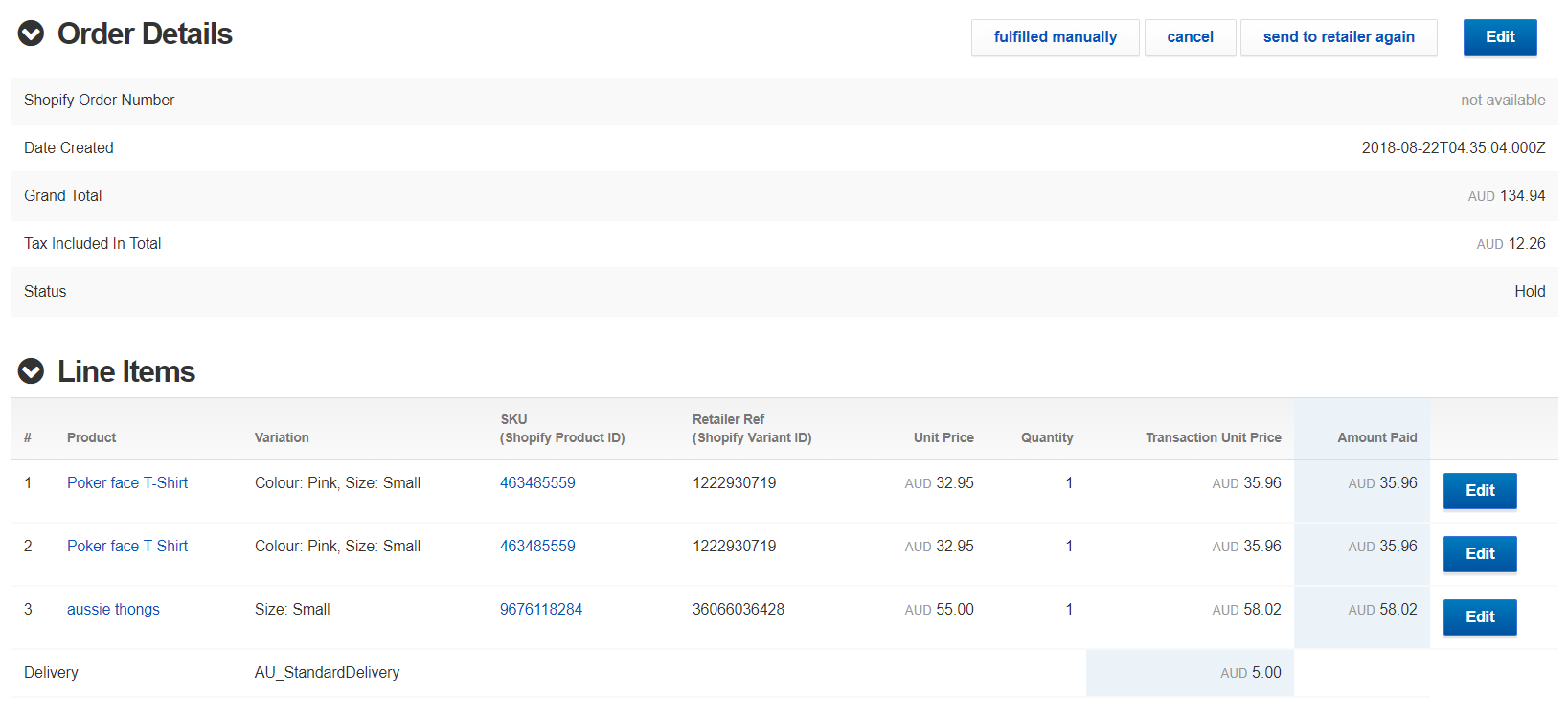
If you have a Type 1 Bundle you will see the order come through with 'Quantity' = to the number in the bundle e.g. for this order with 10 units in the bundle:

If you have a Type 2 or 3 Bundle you will see the order come through with the price for each pro-rated amongst the products and their initial sale price.