
eBay LINK can add a Hero Image to marketplace products using a Product Action.
eBay LINK already supports additional product images. A Hero Image Product Action lets you nominate one image URL from a product attribute and use that image as the hero image for a selected marketplace.
The image URL must first exist in your eCommerce platform and be imported into eBay LINK as a product attribute.
To add a hero image, you need to:
- Host the image online.
- Get a direct image URL.
- Add the image URL to a product field, metafield, or attribute in your eCommerce platform.
- Map that field into eBay LINK.
- Run an import so the image URL appears on the eBay LINK product page.
- Check the exact attribute name shown on the eBay LINK product page.
- Create a Hero Image Product Action using that exact attribute name.
- Revalidate or update the product.
- Check that the image appears under Hero Image.
- Upload the product to the marketplace.
What you need
Before you start, make sure you have:
- An image hosted online.
- A direct image URL that opens in a browser without requiring a login.
- A field, metafield, or attribute in your eCommerce platform that stores the image URL.
- The image URL field mapped into eBay LINK.
- A Hero Image Product Action in eBay LINK.
- Optional: a product group, if only selected products should receive the hero image.
About the image URL
eBay LINK cannot use an image file directly from your computer. The image must be hosted online first.
The image URL must:
- Open directly in a browser.
- Display the image without requiring a login.
- Start with
https://. - Remain available after the product is uploaded to the marketplace.
Do not use:
- An image saved only on your computer.
- A private ecommerce admin URL.
- A URL that requires a login.
- A file-sharing link that opens a webpage instead of the image itself.
Good example:
https://www.example.com/images/product-hero-image.jpg
Bad examples:
C:\Users\Name\Desktop\image.jpg
https://admin.shopify.com/store/example/products/123456
https://drive.google.com/file/d/example/view
Before continuing, paste the image URL into a private or incognito browser window. If the image loads without logging in, eBay LINK should be able to access it.
Step 1: Host the image online
Upload the image to a location where it can be publicly accessed.
This may be:
- Your ecommerce platform.
- Your website.
- Another system that provides a direct image URL.
Once uploaded, copy the image URL.
The URL must point to the image eBay LINK should use as the hero image.
Step 2: Add the image URL to your eCommerce platform
Add the image URL to the relevant product in your eCommerce platform.
The field type depends on your eCommerce platform.
| Platform | Example Field Type |
| Shopify | Metafield |
| WooCommerce | Product Attribute |
| Magento | Product Attribute |
The metafield, or attribute, must contain the image URL you want eBay LINK to use as the hero image.
Step 3: Map the image URL field into eBay LINK
The field that contains the image URL must be mapped into eBay LINK before it can be used in a Hero Image Product Action.
Go to the relevant Map Fields page:
- Shopify: Settings > Shopify > Map Fields
- WooCommerce: Settings > WooCommerce > Map Fields
- Magento: Settings > Magento > Map Fields
Use the relevant mapping guide for detailed instructions:
- WooCommerce and Magento: Map product data fields in eBay LINK for WooCommerce & Magento
- Shopify: Mapping Shopify Metafields in eBay LINK
On the Map Fields page:
- Find the product attribute or field mapping area.
- Select the eCommerce field that contains the image URL.
- Map the field into eBay LINK.
- Click Update Mapping at the bottom of the page.

If the field is not visible, run an import from your eCommerce platform from the Dashboard, then return to the Map Fields page.
Step 4: Run an import
After the field has been mapped, run an import from your eCommerce platform.
This imports the latest product data into eBay LINK, including the image URL field you mapped.
After the import has completed, open a product in eBay LINK that contains the image URL and confirm the image URL appears in the product’s Product Attributes section.
Step 5: Check the attribute name on the eBay LINK product page
Open a product in eBay LINK that contains the image URL.
Go to the product’s Product Attributes section.
Find the attribute that contains the image URL.
You need to use the attribute name exactly as it appears on the eBay LINK product page when creating the Hero Image Product Action.
Do not rename, reformat, or remove characters from the attribute name.
Examples:
| Ecommerce platform |
Attribute name shown on eBay LINK product page | Attribute name to enter in the Product Action |
| Shopify | amazon gallery image | amazon gallery image |
| WooCommerce | _eBay LINK_image_test | _eBay LINK_image_test |
Copy what you see on the eBay LINK product page, including:
- Spaces
- Underscores
- Leading underscores
- Capitalisation, if shown.
The format can differ between eCommerce platforms. Shopify metafields may appear as readable names, while WooCommerce attributes may appear with underscores.
The rule is:
Enter the attribute name exactly as it appears on the eBay LINK product page.
Step 6: Create the Hero Image Product Action
Go to:
Products > Product Actions > Create Hero Image
Complete the Product Action fields:
| Field | What to enter |
|---|---|
| Name | Enter a clear name for the action. |
| Marketplace | Select the marketplace the hero image should apply to. |
| Product Group | Optional. Select a product group if the hero image should only apply to specific products. |
| Attribute Name | Enter the attribute name exactly as it appears on the ebayLINK product page. |
Example Product Action setup:
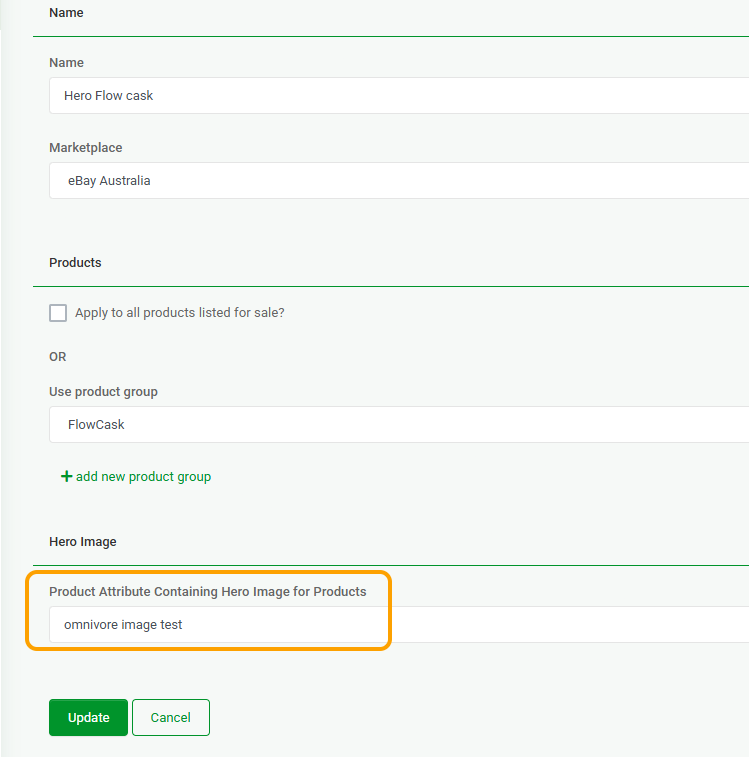
The attribute name must match the product attribute shown in eBay LINK.
Do not:
- Remove underscores.
- Add underscores.
- Replace spaces with underscores.
- Replace underscores with spaces.
- Remove a leading underscore.
Input what you see on the eBay LINK product page.
Step 7: Revalidate or update the product
After creating the Product Action, open a product that should use the hero image.
In the relevant marketplace section, update or revalidate the product from the eCommerce platform.
For example:
- Update from Shopify
- Update from WooCommerce
- Update from Magento
This refreshes the product data and applies the Product Action.
The hero image will not appear until the product has been updated or revalidated after the Product Action has been created.
Step 8: Check the hero image
After the product has been updated or revalidated, check the product page in eBay LINK.
The image should appear under the Hero Image heading.
If the image appears under Hero Image, the Product Action has applied successfully.
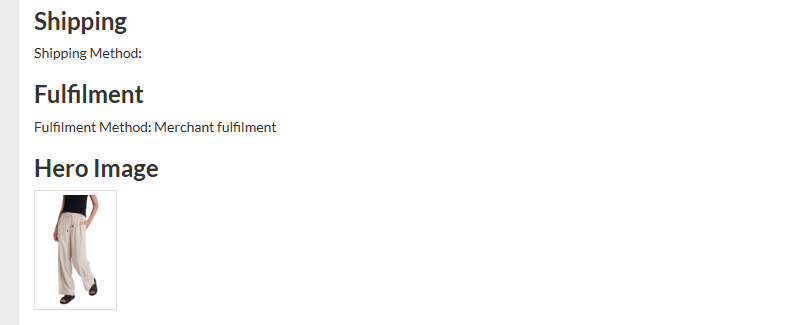
Step 9: Upload the product to the marketplace
The hero image appears in eBay LINK first.
It will be sent to the marketplace on the next product upload.
If the image appears in eBay LINK but not on the marketplace, check whether the product has been uploaded since the Hero Image Product Action was applied.
Troubleshooting
The image URL does not work
-
Check that the image is hosted online and opens directly in a browser.
-
The URL must not require a login or point to a private eCommerce admin page.
-
If the image is only saved on your computer, upload it to your eCommerce platform or another image hosting location first, then use the hosted image URL.
The field is not visible when mapping
Run an import from your eCommerce platform from the Dashboard, then check the Map Fields page again.
If the field still does not appear, confirm that:
- The field exists on the eCommerce product.
- The field contains a value.
- The field is available for product data imports.
The image URL does not appear on the eBay LINK product page
Check that:
- The image URL has been added to the product in your eCommerce platform.
- The field has been mapped into eBay LINK.
- Update Mapping was clicked after mapping the field.
- An import has run after the field was mapped.
- You are checking a product that has a value in that field.
The Hero Image Product Action does not apply
Check the Attribute Name field in the Product Action.
The value must exactly match the attribute name shown in the Product Attributes section on the eBay LINK product page.
Examples:
- If eBay LINK shows
amazon gallery image, enteramazon gallery image. - If eBay LINK shows
_ebaylink_image_test, enter_ebaylink_image_test.
Do not change the format of the attribute name.
The hero image does not appear on the product
Check that:
- The image URL opens directly in a browser.
- The image URL is stored against the product in your eCommerce platform.
- The field has been mapped into eBay LINK.
- Update Mapping was clicked.
- An import has run after the field was mapped.
- The Product Action uses the exact attribute name shown on the eBay LINK product page.
- The product has been updated or revalidated from the eCommerce platform after the Product Action was created.
The image appears in eBay LINK but not on the marketplace
Check that the product has been uploaded to the marketplace after the Hero Image Product Action was applied.
The hero image appears in eBay LINK first, then uploads to the marketplace on the next product upload.